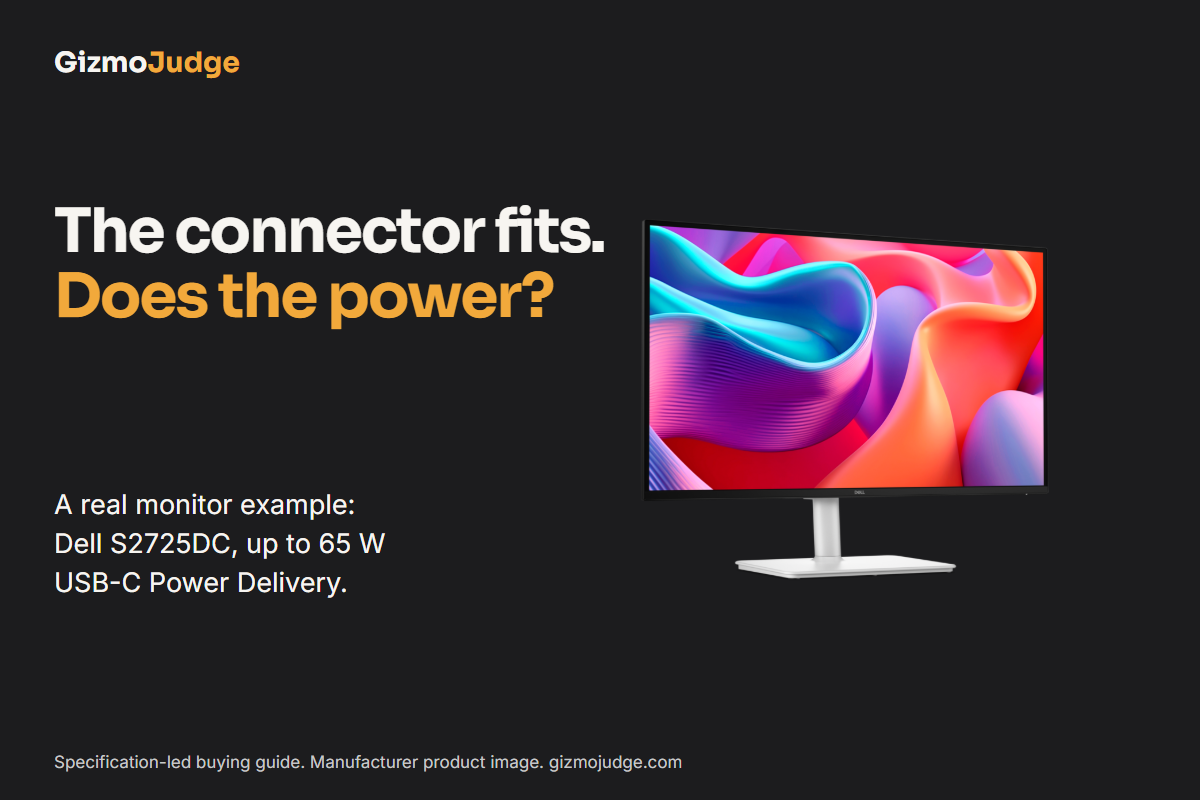
Verdict: buy only after checking the exact laptop port, monitor input, cable and charging requirement. USB-C describes the connector shape. It does not by itself promise a picture, charging, or your preferred screen refresh rate. A monitor may charge a laptop without displaying video, and a video-capable connection may still need a separate charger.
This is a specification-led buying guide, not a hands-on review. Confirm the published specifications for your exact devices and region before ordering.
1. Start with the laptop port
Find the laptop manufacturer’s specifications for your exact model and the exact USB-C port you plan to use. Look for DisplayPort over USB-C, DisplayPort Alternate Mode, USB4 with display output, or the particular Thunderbolt capability stated by the manufacturer. A USB-C port that carries data is not automatically a video output.
If the laptop does not provide video from that port, do not assume a different passive USB-C cable will add the missing capability. Check whether another supported video output or a manufacturer-supported dock provides the display arrangement you need. Dock compatibility varies; verify its requirements rather than assuming all docks behave alike.
2. Check the monitor input, not just a USB-C socket
A monitor can have more than one USB-C port, with different jobs. Find the upstream port intended for the laptop and check that it accepts a display signal. Also check the screen resolution and refresh rate supported through that particular input with your hardware. A port that charges a phone or connects peripherals is not necessarily the monitor’s video input.
As one concrete product example, Dell lists DisplayPort 1.4 Alternate Mode on the upstream USB-C connection for its S2725DC monitor. That is a stated specification for this model, not a guarantee about every Dell USB-C port or any particular laptop. Check the current product specification for your region and configuration. Dell S2725DC specifications
3. Match the cable to the complete job
For a direct laptop-to-monitor connection, check that the included or replacement cable is rated by its manufacturer for the video mode and power you need. A cable may have USB-C plugs at both ends without being suitable for the display and charging combination you want. Keep the cable model or supplied-cable description, not just a picture of its connector.
If you use a dock, check the laptop-to-dock connection, the dock’s display outputs and the second cable separately. The weakest supported part of that chain can limit the outcome. Check the dock’s own combination table for your chosen screen resolution, refresh rate and number of displays.
4. Treat charging as a separate decision
Check three facts: whether the laptop accepts charging through that port, how much power the laptop manufacturer recommends, and how much USB-C Power Delivery the monitor or dock can supply to the laptop. Then confirm the cable supports that power level. A lower output may produce slow charging or fail to keep up during heavy work; behaviour depends on the laptop.
For a concrete product check, Dell lists up to 65 W Power Delivery from the S2725DC upstream USB-C port. Compare that output with the requirement for your exact laptop, rather than assuming a display-capable cable also replaces its charger.
A real product example: Dell S2725DC
Buy If: you want a 27-inch QHD screen and the exact laptop, port and cable meet the display and power requirements for your work. Skip for a single-cable requirement above 65 W: Dell lists up to 65 W from this monitor. You may still use a separate supported charger, or shortlist a monitor with higher documented Power Delivery.
Dell’s US specification identifies the S2725DC as a 27-inch, 2560 by 1440 monitor with a maximum 144 Hz refresh rate. Its upstream USB-C supports DisplayPort 1.4 Alternate Mode and Power Delivery up to 65 W. These are the monitor’s published capabilities, not a promise that every laptop and cable will achieve the maximum display mode.
Consider a fictional laptop whose manufacturer specifies a 90 W charging requirement for the intended use. A monitor rated at up to 65 W does not meet that stated requirement by itself. That does not tell us the laptop’s precise behaviour under every workload. It tells us not to buy this setup on the assumption that one cable necessarily replaces its 90 W charger.
Now consider a laptop documented for USB-C video and a charging requirement the monitor can meet. The power check is promising, but the connection still needs the right port, cable and supported display mode. Check each part before ordering. A charging match does not certify video compatibility.
The accompanying graphic makes that specific buying decision visible. The 65 W value is a published monitor specification; the 90 W laptop is an illustrative example. This is desk research, not a hands-on review. Current price, availability and return terms should be checked with the seller in your region.
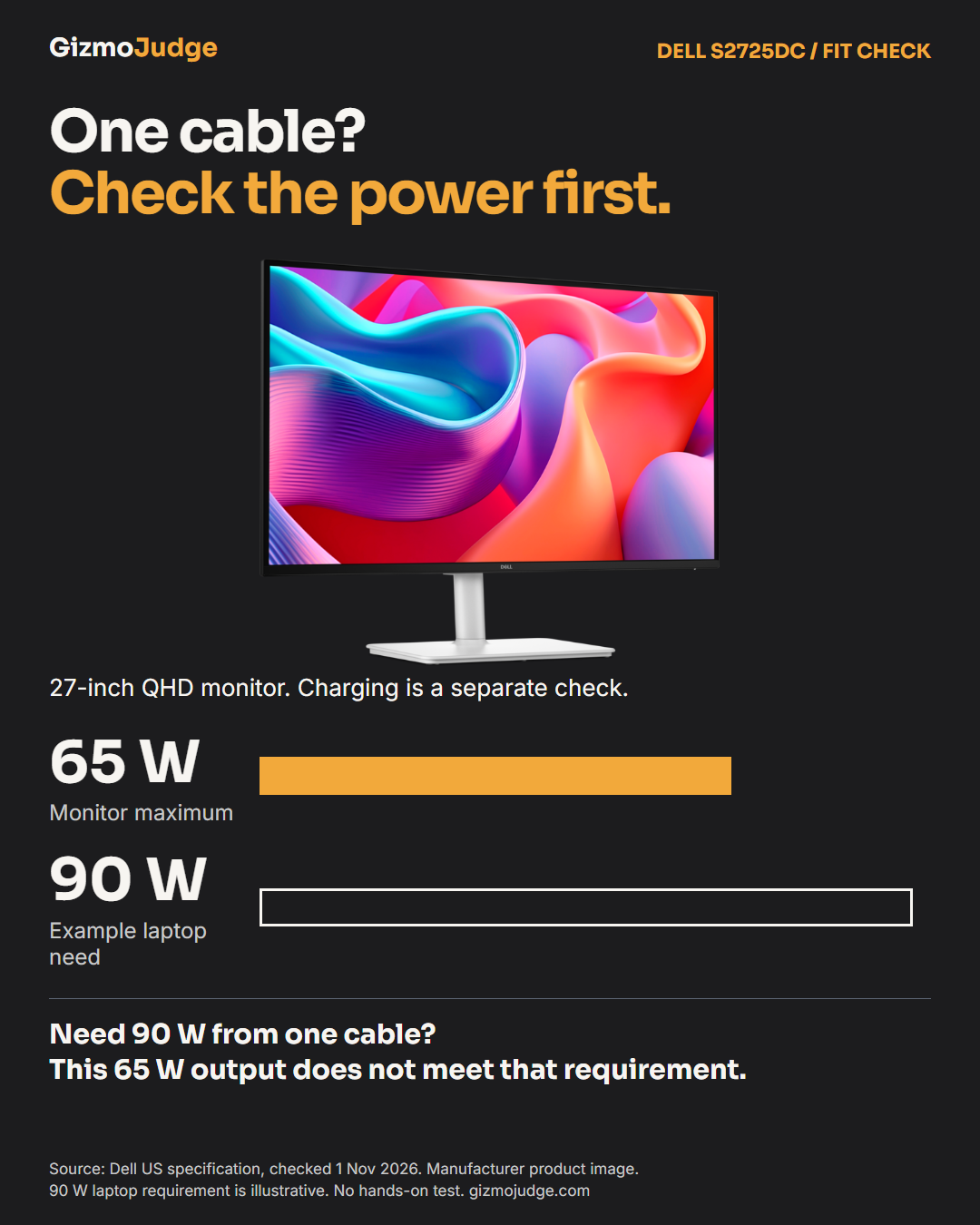
Source: Dell S2725DC current US specification, checked 1 November 2026. Manufacturer product image used for this model-specific editorial explanation.
A quick example
Imagine a laptop maker says its left USB-C port supports video and USB-C charging. Its charger specifies 65 W. The monitor’s exact upstream USB-C input accepts video and can deliver up to 90 W, and the supplied cable is documented for the required display and power. That is a promising match, not proof of every refresh-rate combination. Confirm the laptop and monitor display tables, then test at the desired resolution and refresh rate when possible. The numbers in this example are illustrative, not a claim about a specific laptop.
If the screen stays blank
1. Select the correct monitor input and reseat both ends.
2. Confirm the laptop port is documented for video, then try its other supported display output if available.
3. Test a known compatible video-capable cable and connect directly before adding a dock.
4. Check the laptop and monitor support tables for the display mode and number of external screens.
5. If charging is the only problem, compare the laptop requirement, monitor output and cable rating separately.
If a manufacturer’s specifications are unclear, keep the answer as unknown rather than buying on connector shape alone. A seller or manufacturer can confirm the exact laptop, screen, cable and dock together.
Make the decision with the tool
Use GizmoJudge’s monitor setup compatibility checker to work through the mounting and connection questions before purchasing. It helps you identify unknowns; it cannot certify an unlisted device combination or replace the manufacturer’s current specifications.
The buying decision: choose the connection you need first, then verify every part of the path. Video, charging and your desired screen settings are separate checks.